.png?width=160&height=160&name=Logo%20with%20Text%20(4).png)
Able Space’s advanced graph tools help you customize, analyze, and present student progress with greater clarity and control. This guide walks you through how to use each feature effectively.
Here’s how you can access a graph:
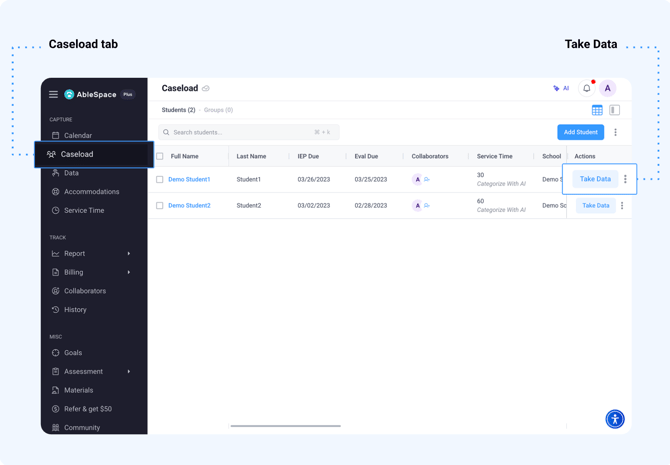
- Choose a student from your caseload and click the “Take Data” button.
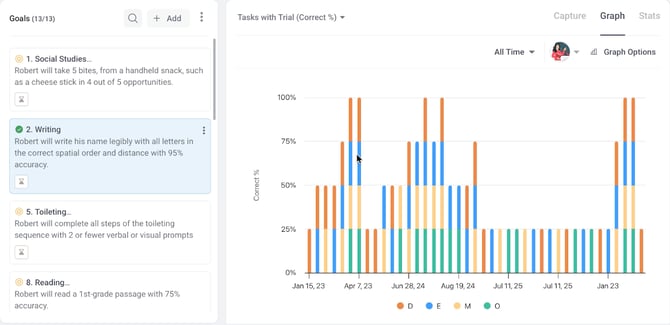
- On the Data Taking screen, select the goal whose graph you wish to view.
- Click the graph section to view the graph for that goal.
Graph Options
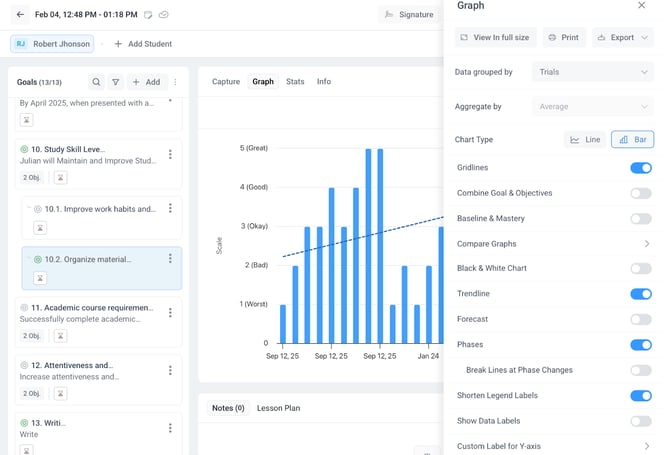
In the graph section, click the “Graph Options” button to open a sidebar with advanced customization features. Let’s go over these features.
-
View in Full Screen
Click the “View in Full Size” button to expand the graph to full screen. This option is ideal for a clearer, distraction-free view of the entire graph.
-
Print Graph
Click the “Print” button for a quick, high-quality printout of your graph.
-
Export Graph
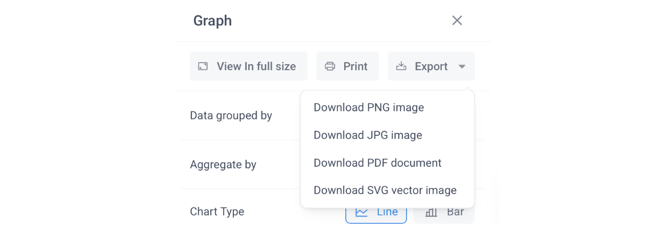
Click the “Export” dropdown button to choose from multiple download formats, including:
-
- PNG
- JPG
- SVG (for high-quality visuals)
-
Choose how your data is grouped
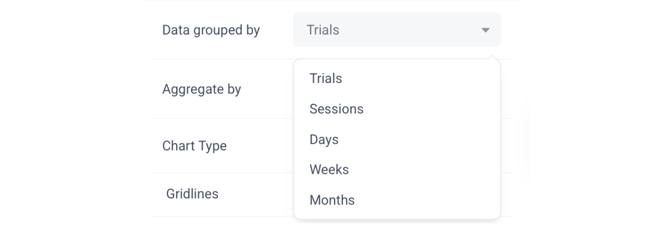
Click the dropdown menu to group data by time frame. Select from Trials, Sessions, Days, Weeks, or Months. Click “Aggregate by” to group sessions, days, weeks, or months, but only for number-type measurement fields such as frequency, duration, or custom values.
-
Change Chart Style
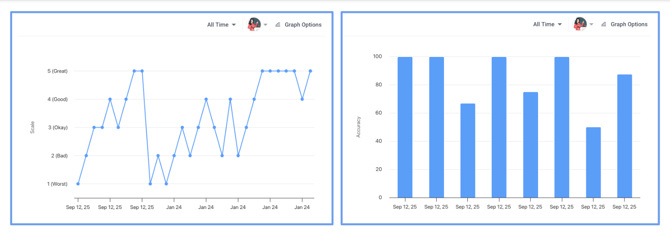
Visualize data in the style that’s easiest to interpret or present. You have the option to toggle between a Line Chart and a Bar Chart with just one click.
-
Show or Hide Gridlines
Gridlines make trends easier to spot. Toggle gridlines on or off for a cleaner or more detailed view.
-
Combine Similar Objectives
This feature displays related objectives under a goal in a single visual for holistic progress tracking. Simply enable the “Combine Goal and Objectives” option.
-
Add Baseline and Mastery Markers
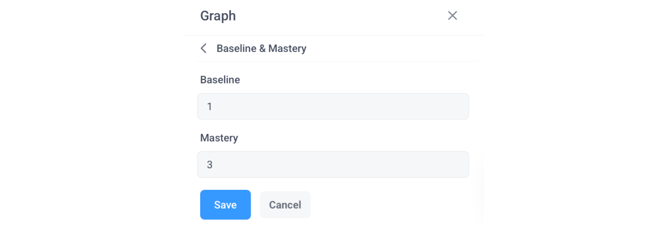
You can add reference lines for baseline and mastery levels to contextualize performance.
-
-
Toggle on the “Baseline and Mastery” option to open a sidebar.
-
In the sidebar, select the baseline and mastery values.
-
Click “Save” to confirm your selection.
-
-
Compare Multiple Goals
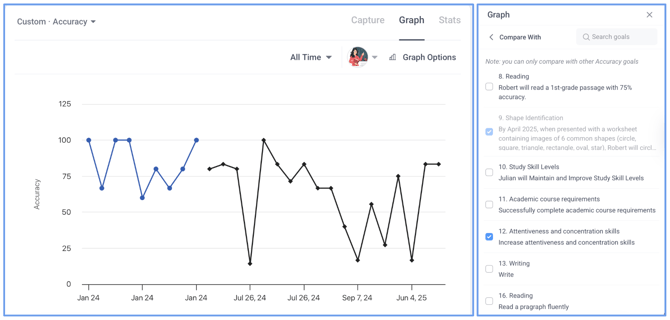
The “Compare Graph” feature allows you to view multiple goals or objectives side by side in one graph.
-
-
Click the “Compare Graph” option to open a sidebar.
- Search for or select the goals you want to compare.
- Select “Save as Template.”
- Name the template and click “Save.”
-
Note: This option is only applicable when multiple goals share the same measurement type. If only one goal exists for a type, this option will not appear in the graph options.
-
Black & White mode
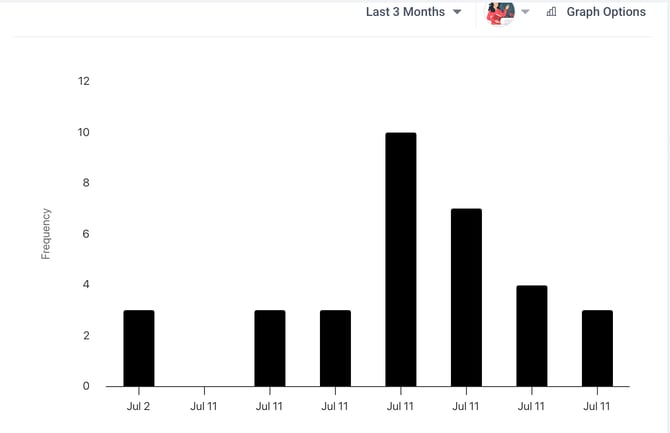
Switch to Black & White view for your chart as needed. This option is suitable for printer-friendly visuals and enhanced accessibility.
-
Add Trend Lines
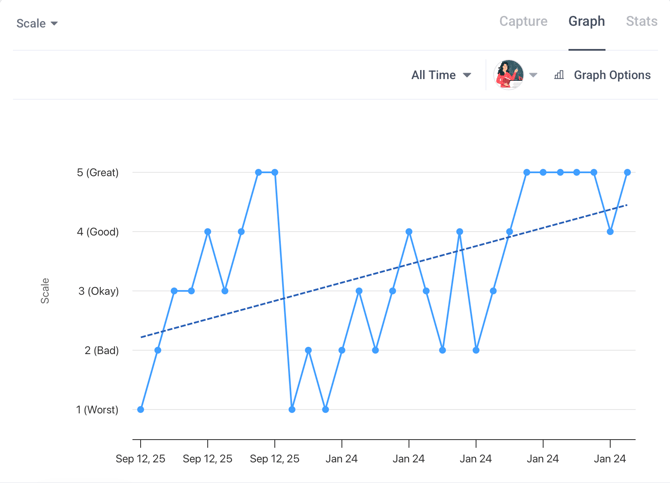
Toggle on the “Trend Line” feature to instantly view overall progress patterns.
-
Forecast Future Performance

Toggle on the “Forecast” button and enter the number of periods you want to forecast. This allows you to predict future performance trends based on current data.
-
Mark Learning Phases
Add Phases to highlight key stages, interventions, event lines or transitions in a student’s learning journey.
-
Shorten Legend Labels
Toggle on the “Shorten Legend Labels” button to truncate longer label names at the bottom for better visibility.
- Show Data Labels
This feature labels data points in a chart with numbers on top of each point for detailed graph insights.
-
Customize the Y-Axis Label
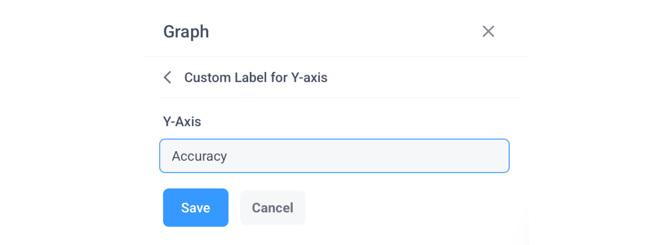
You can tailor the graph to reflect the exact measurement or criteria you’re tracking.
-
- Click the “Y-Axis Label Edit” button.
- In the sidebar that appears, enter your preferred label and click “Save.”
With these advanced tools, AbleSpace graphs transform your raw data into actionable insights.
Need further help?
Reach out anytime at support@ablespace.io.