.png?width=160&height=160&name=Logo%20with%20Text%20(4).png)
The Data Tab in AbleSpace is designed to help you log, manage, and edit data with ease, ensuring you stay organised while tracking your students' progress.
Step 1: Creating a New Session and Logging Data
To begin logging new data, follow these steps:
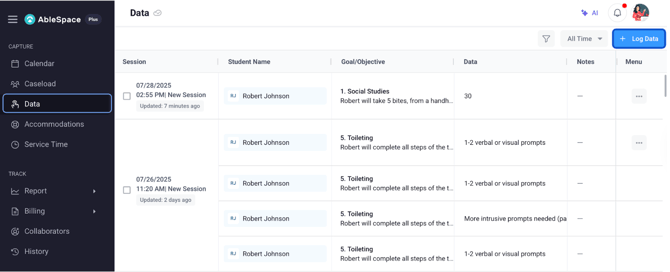
- Open the Data Tab.
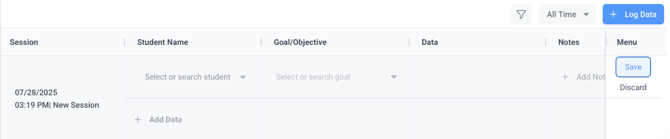
- Click on the "Log Data" button, which is located in the top right corner of your screen. A new row will be automatically added to the table.
Proceed to fill out each column:
-
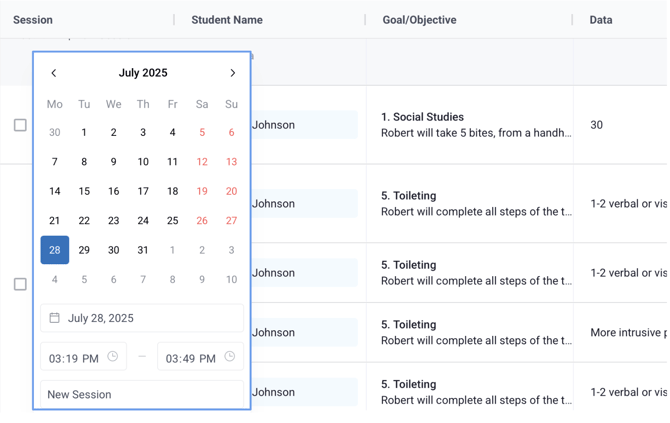
- Session column: Input the event name along with the date and time for the session.
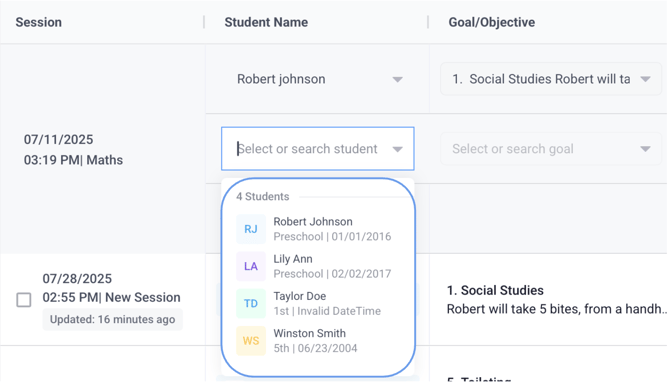
- Student column: Select the student for whom you wish to log data. Click ‘Add Data’ to select multiple students at once.
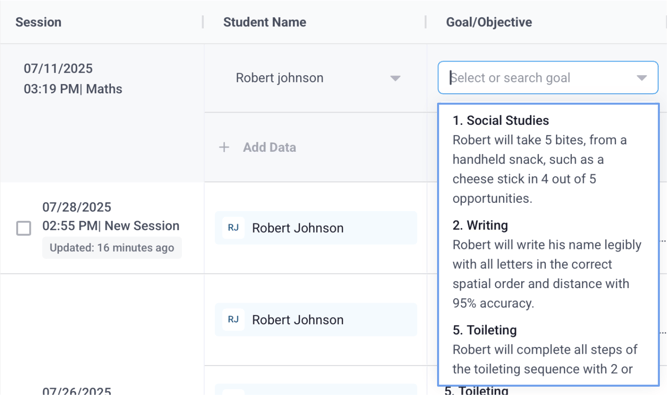
- Goal objective column: Choose or search the relevant goals or objectives you wish to track for the selected student(s).
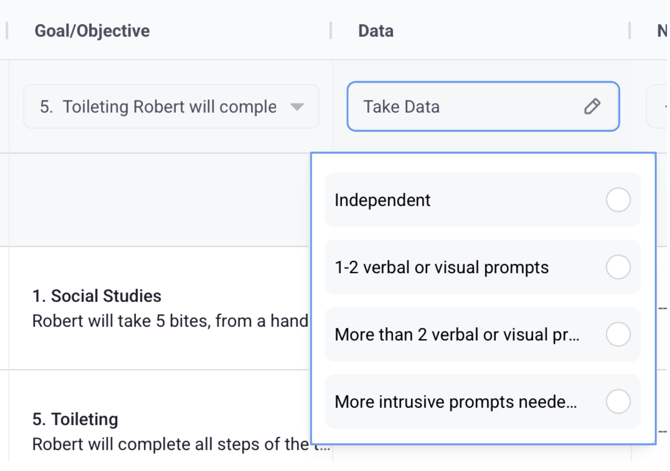
- Data column: Add the necessary data based on the data types provided. Whether you are logging percentages, accuracy, or other data types, this column will display the format for that specific goal.
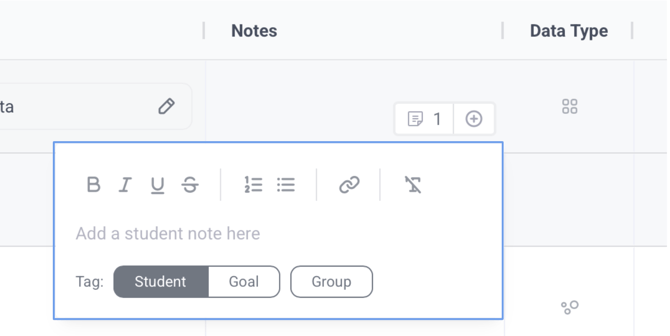
- Notes column: Add additional context by including student notes, goal notes, or even group notes for the data you are logging.
- Session column: Input the event name along with the date and time for the session.
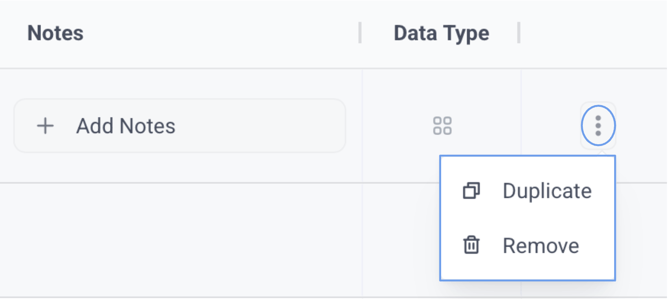
- To log multiple trials for the same student and goal, click on the three-dot menu icon and select "duplicate" from the popup that appears. This allows for tracking multiple trials quickly.
- To remove an incorrect or unnecessary row, click on the three-dot menu icon and select "Remove" from the popup that appears.
Finally, click the "Save" button to ensure all your data is securely logged.
Step 2: Logging Data for Existing Sessions
You can also log data for sessions that have already been created.

- To log data for one of these existing sessions, click on the three-dot menu icon next to the session and select "edit Session" from the popup that appears.
- This action will open the row in draft mode, enabling you to log data in the same way you would for a new session.
- From here, you can follow the same steps as creating a new session: inputting session details, selecting students, goals, and data, and then saving your changes.
Tips and Tricks for the Data Tab
Here are some useful tips to enhance your experience with the Data Tab:
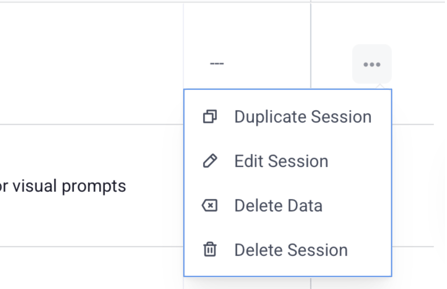
- Duplicate a Session: To quickly create a copy of a session, click on the three-dot menu and select "duplicate session".
- Delete Specific Data: If you need to clean up or update information, use the "delete data" option to remove specific data from a session.
- Completely Remove a Session: To entirely delete a session, click the "delete session" button from the three-dot menu.
The Data Tab simplifies keeping everything organised, whether you are working with new or existing sessions.
Need Help?
If you have any questions, feel free to contact our support team at support@ablespace.io.