.png?width=160&height=160&name=Logo%20with%20Text%20(4).png)
AbleSpace is designed to automate your special education workflows. Its AI-powered tools allow you to generate IEP goals, goal strategies, progress notes, batch notes, worksheets, and more.
This guide outlines how to use each AI feature in detail.
Generating IEP Goals
To create IEP goals using AbleSpace’s intelligent assistant:
- Click the AI button at the top right corner of the header.
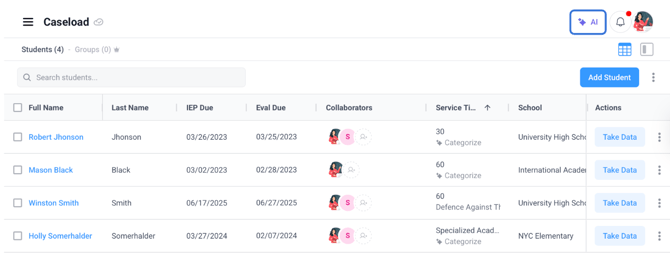
- Select Generate IEP Goal in the AbleSpace AI Panel.
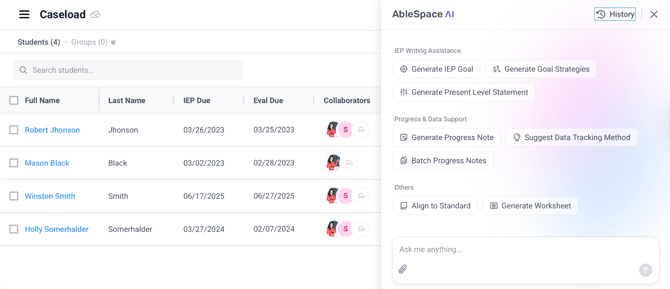
- The IEP Goal Generation Panel will open on the right side of your screen.
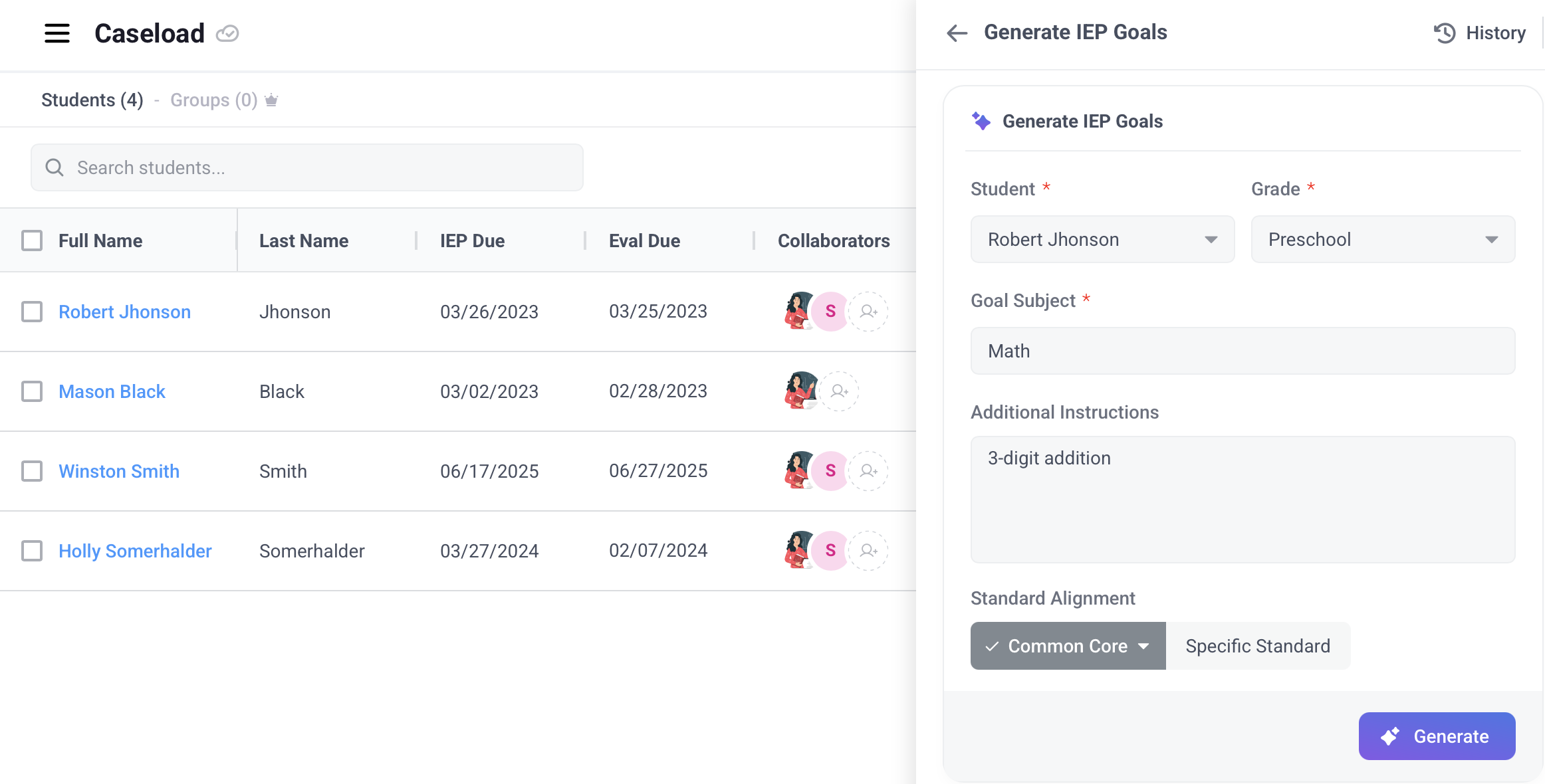
- In this panel:
-
- Select the Student
- Choose their grade
- Enter the Goal Subject
- (Optional) Add Additional Instructions
- Click Common Core to align the goal with specific state or regional standards
- Click Generate
- AbleSpace AI will instantly provide several goal suggestions.
- Click ‘Generate More’ for more such suggestions.
- Select the goal that best meets your needs.
- You can also copy the selected goal, add objectives, adjust difficulty, or regenerate it.
- Click Try Custom to enter a custom prompt.
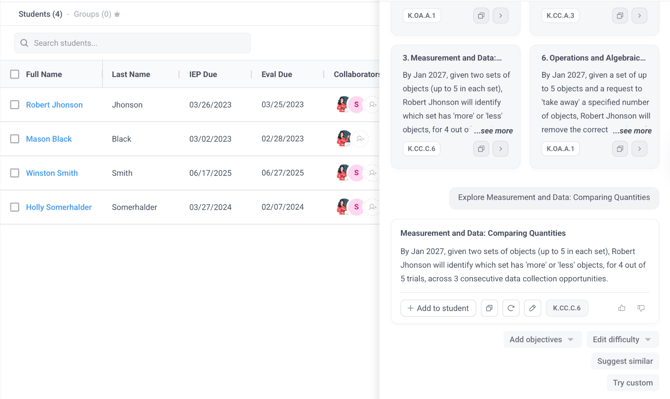
- When satisfied, click Add to Student.
- In the dialog box that appears, click Save Goal.
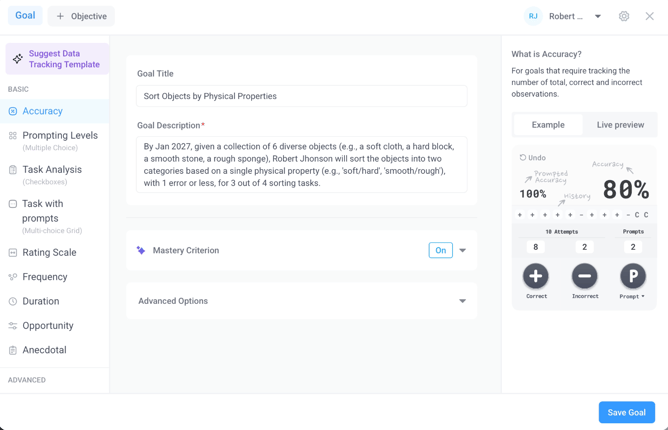
The goal will now be added to the student’s profile.
Generating Goal Strategies
To create AI-recommended strategies for a goal:
- Click the AI button at the top right corner of the header.
- Select Generate Goal Strategy in the AbleSpace AI Panel.
- The Goal Strategy Generation Panel will appear on the right side.
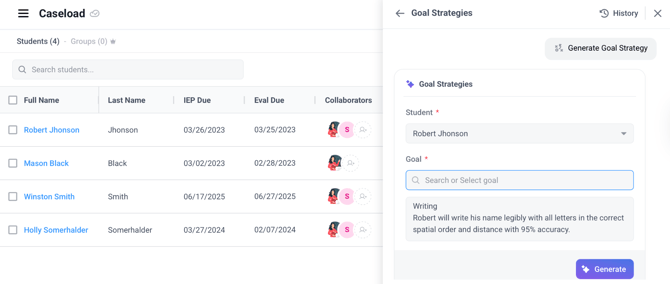
- In this panel:
-
- Select the student
- Choose or enter a goal
- Click Generate
- AbleSpace AI will provide targeted strategy suggestions.
- Click Generate More for additional strategies.
- Select a strategy that works best for your case.
- You can simplify, regenerate, or request suggested activities.
- Click Try Custom to provide your own input.
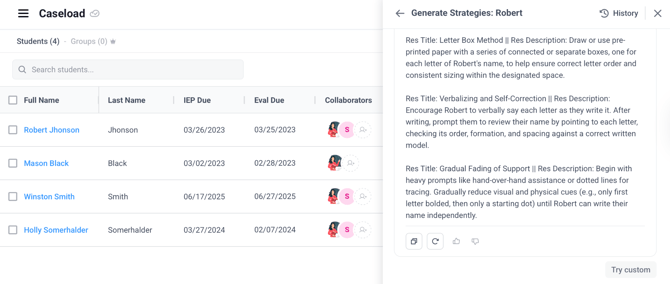
- When ready, click Copy to use the strategy.
Generating Progress Notes
To create a progress note:
- Click the AI button at the top right corner of the header.
- Select Generate Progress Note in the AbleSpace AI Panel.
- The Progress Note Generation Panel will appear on the right.
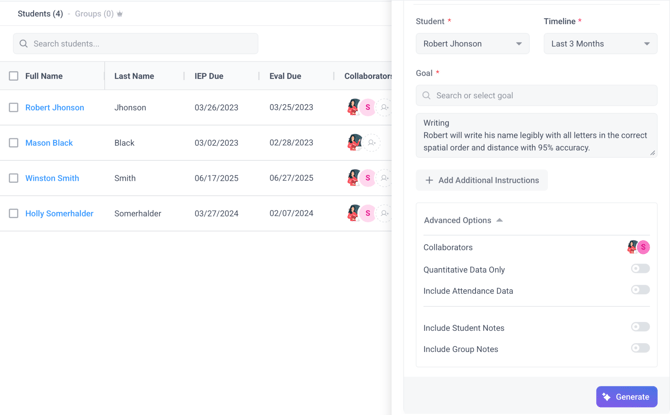
- In this panel:
-
- Select the Student
- Choose the timeline
- Select one or more goals (or use “Select All Goals”)
- Click the Advanced Options dropdown to:
- Use quantitative data only
- Include attendance data
- Include all objectives
- Click Generate
- AbleSpace AI will produce a detailed progress note.
- You can adjust sentiment, change tone, add details, simplify, shorten, or try Custom to tailor the content.
- When finished, click Add to Student.
Your note will now be available in the View Data section.
Suggest Data Tracking Method
Follow these steps to find the best-suited data tracking methods for individual goals.
- Click the AI button at the top right corner of the header.
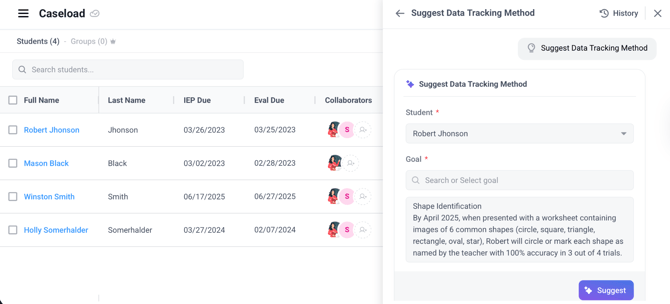
- Select Suggest Data Tracking Method in the AbleSpace AI Panel.
- The Data Tracking Suggestion Panel will open on the right.
- In this panel:
-
- Select the Student
- Choose a goal (You can also access this while creating a new goal)
- Click Suggest Data Tracking Methods.
- AbleSpace AI will recommend the most suitable data types.
- Click Use to apply the recommended method.
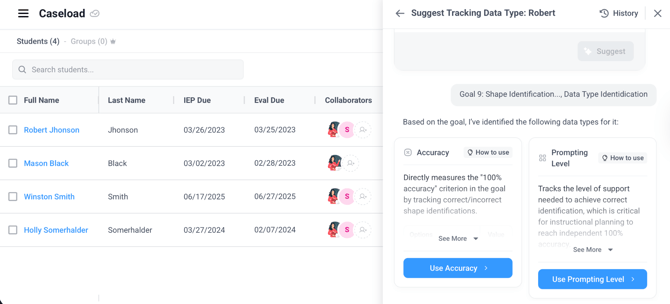
- A dialog box will appear. Click Save Goal to confirm.
📔 Note: If another provider has already entered data for the goal, the data type cannot be changed. To update it, you'll need to manually delete each existing data point.
Generating Batch Progress Notes
To create progress notes for multiple students:
- Click the AI button at the top right corner of the header.
- Select Batch Progress Note in the AbleSpace AI Panel.
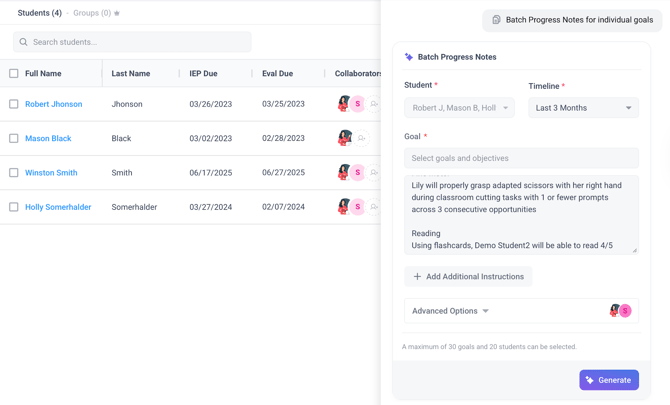
- The Batch Progress Note Generation Panel will appear on the right.
- In this panel:
-
- Enter multiple students
- Select their goals
- Specify the timeline
- Click Generate
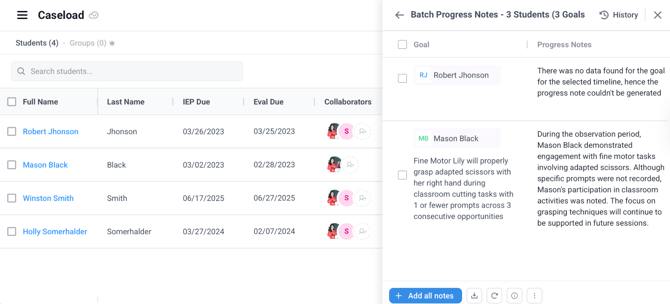
- AbleSpace AI will create progress notes for each goal.
- You can edit, regenerate, or download the notes as a CSV file for bulk documentation.
Generating WorkSheets
To create a custom student worksheet:
- Click the AI button at the top right corner of the header.
- Select Generate Worksheet in the AbleSpace AI Panel.
- The Worksheet Generation Panel will appear on the right.
- In this panel:
-
- Select the Student, their Grade, and a Goal
- (Optional) Add Additional Instructions
- Choose whether to include an answer key
- (Optional) Align to standards or student interests
- Click the Advanced Options dropdown to select the question type and the number of questions.
- Click Generate
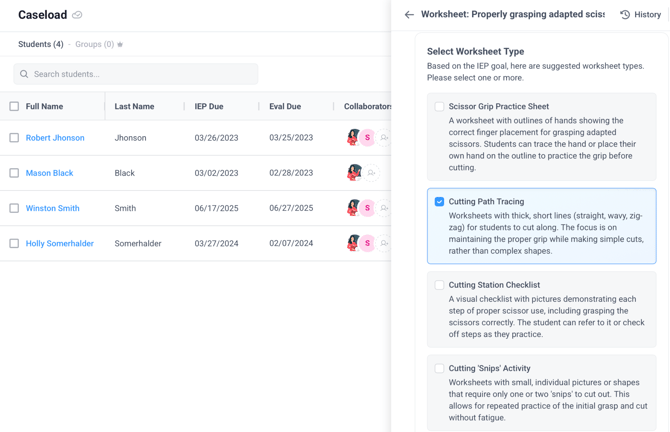
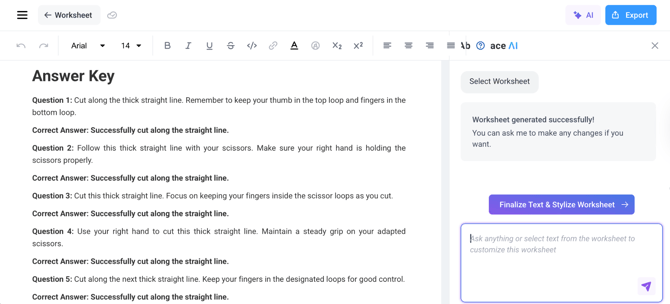
- AbleSpace AI will instantly provide a customized worksheet.
- Click Edit and Export to review or make changes before downloading.
Generating Present Level Statement
To generate a Present Level Statement using AbleSpace AI:
- Click the AI button at the top right corner of the header.
- Select Generate Present Level in the AbleSpace AI Panel.
- The Present Level Generation Panel will appear on the right side of the screen.
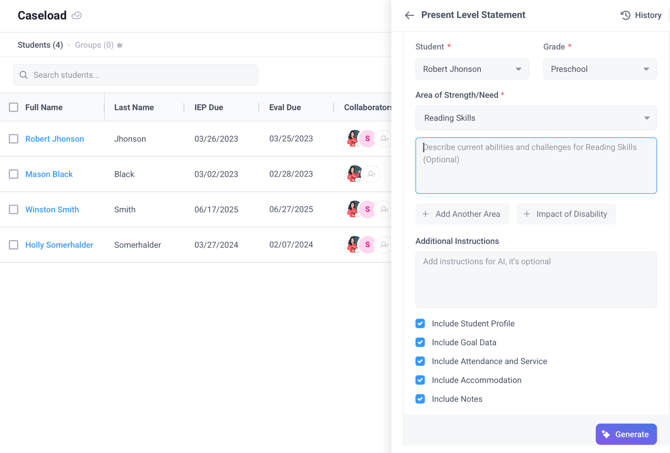
- In this panel:
-
- Select the Student and their Grade
- Add one or more Areas of Strength/Need
- (Optional) Add the Impact of Disability
- (Optional) Include any Additional Instructions
- Check one or more Additional Options, if needed
- Click Generate
- AbleSpace AI will instantly create a Present Level Statement.
- You can adjust the generated content as needed and copy it for future use.
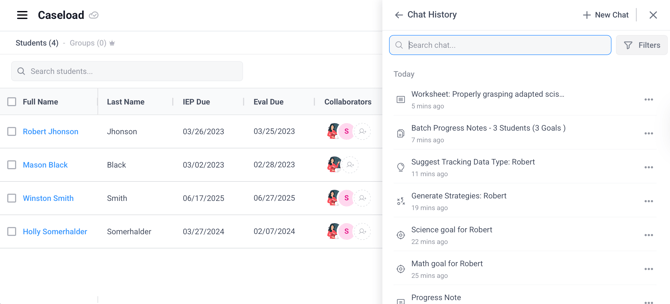
📔 Note: To view your previously generated content:
- Click the AI button at the top right corner of the header.
- Click the History tab in the upper-right of the AbleSpace AI Panel.
A sidebar will open, showing a list of all previously generated AI outputs.
It's time to digitize your data collection, save time and boost accuracy. Start using AbleSpace today. If you have any further questions, feel free to reach out to us at support@ablespace.io.