.png?width=160&height=160&name=Logo%20with%20Text%20(4).png)
In AbleSpace, service time helps you track the exact duration of services provided to students during a session, ensuring accuracy, transparency, and compliance. You can capture service time data in multiple ways. Here’s how you can get started.
1. Viewing the Service Table in the Data-Taking Screen
- Go to the Calendar tab.
- Select your preferred session to open the session details sidebar.
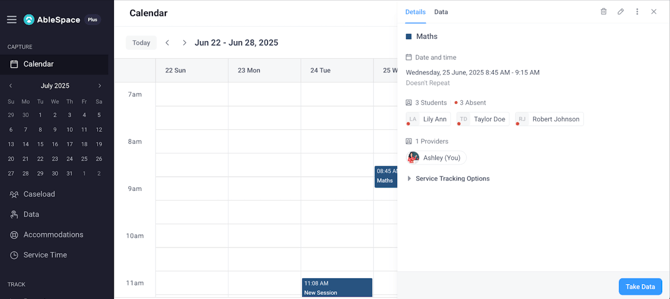
- In the sidebar, click on the Take Data button to open the data-taking screen.
- In the data-taking screen, click on the Services drop-down icon at the top-right corner.
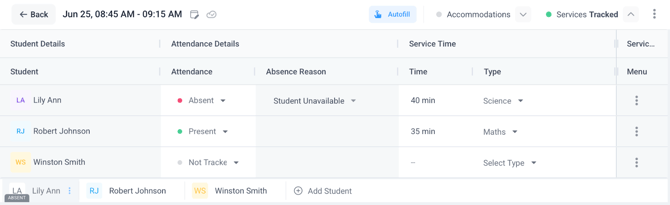
- A detailed Service Table will appear with three columns:
- Student Details
- Attendance Status
- Service Time
- You can modify attendance by changing the status. (You can mark a student as present, absent, or choose the Not Tracked option if attendance isn't being recorded.)
- If needed, you can select or type in an absence reason.
- The Service Time will automatically adjust based on attendance changes. By default, the service time equals your session duration. However, you can manually adjust it.
- Select or write the Service Type from the drop-down menu.
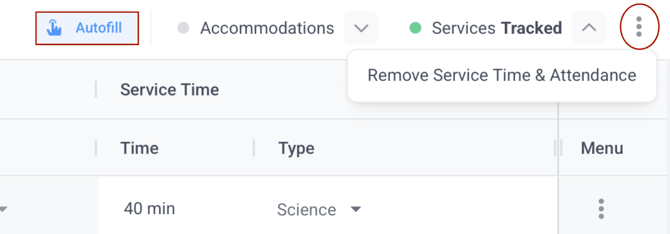
- For larger group sessions, click the three-dot menu in the top-right corner to remove service time and attendance collectively.
- The Autofill button streamlines the process by automatically populating service time and attendance.
2. Setting Default Attendance
- Go to the Service Time tab.
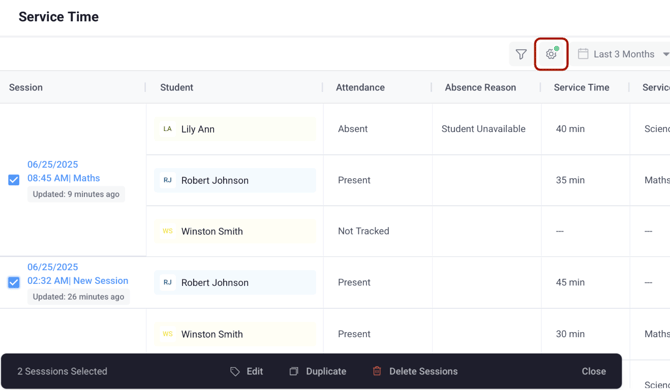
- Select the preferred sessions and click the gear icon for settings.
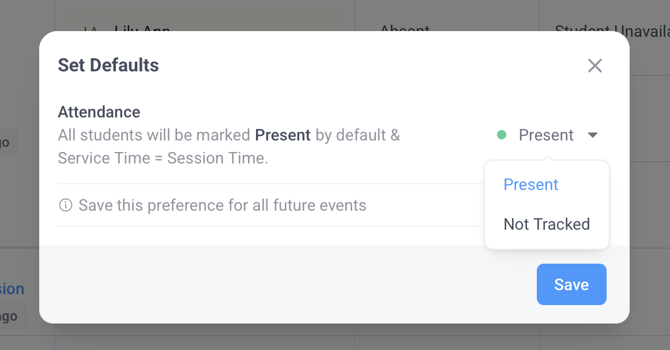
- Set your default attendance preference from the dialog box that appears.
- If you select the Present option, all students will be marked as present by default.
- Likewise, choosing Not Tracked will mark all students as Not Tracked by default.
- New events will automatically apply this setting unless changed.
3. Tracking Service Time from the Calendar Sidebar
- Click on any event in the Calendar.
- A sidebar will open displaying the session Details.
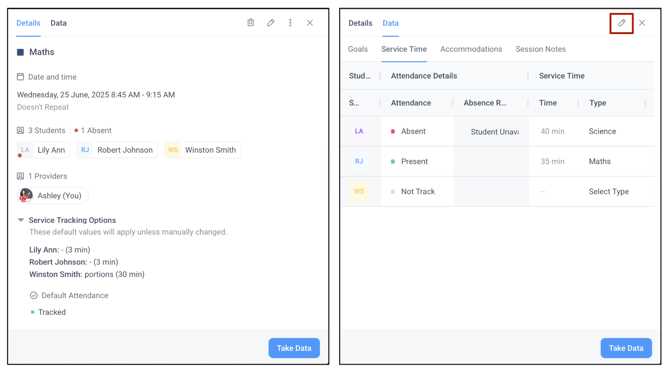
- In the sidebar, click the service tracking options dropdown menu to see the default attendance, service time and service type.
- To update service time:
- Click on the Data tab.
- Choose the Service Time section.
- Click the Edit button in the top-right corner of the sidebar to make any necessary changes.
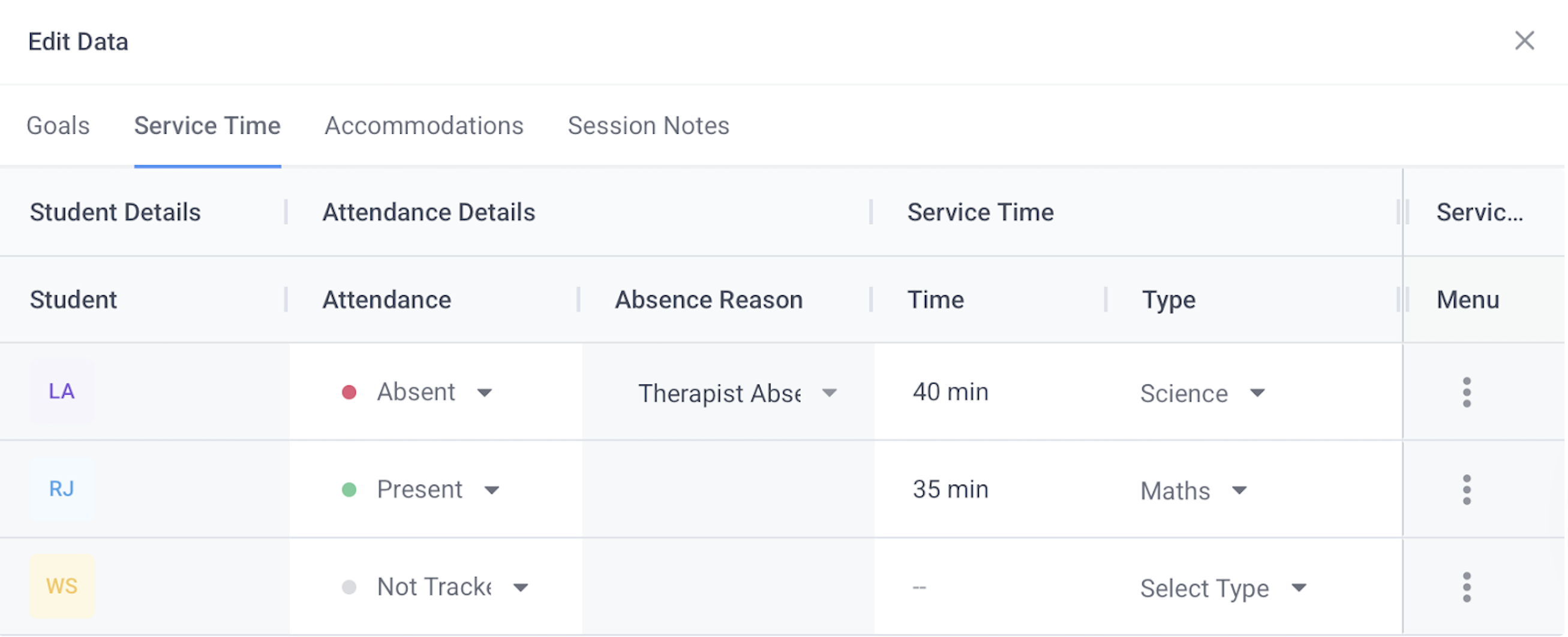
You can update service time, attendance, and service type. Additionally, you can specify absence reasons and add service types as needed.
4. Adding Service Time While Creating a New Session
- Go to the Calendar tab.
- Either:
- Edit an existing event, or
- Click on the create button or anywhere on the calendar to create a new session.
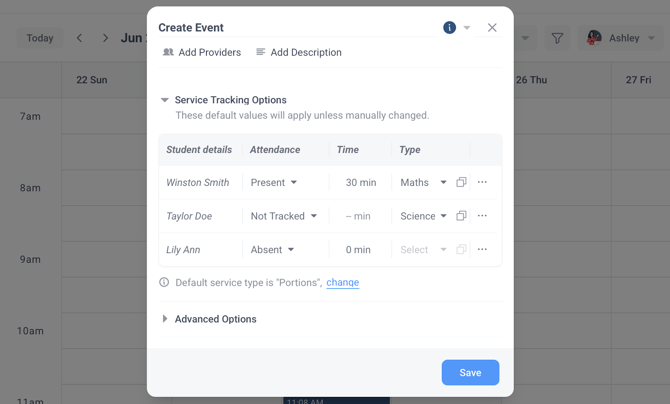
- In the dialog box that appears, click the Service Tracking Options drop-down.
- The same editable Service Timetable will appear.
- Set the following for each student:
- Attendance
- Service Time
- Service Type
- You can also set a default service type for all future events.
- Click Save to confirm your session setup.
5. Editing Service Time from the Service Time Tab or Attendance Report
You don’t need to open each session individually to make edits. Instead, you can:
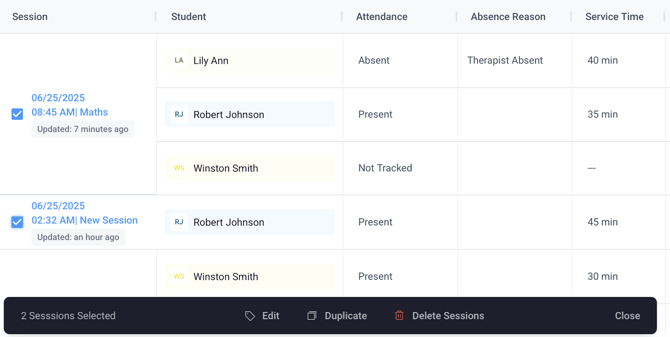
- Go to the Service Time tab, select one or more sessions using the checkboxes, and update service time details for all selected events.
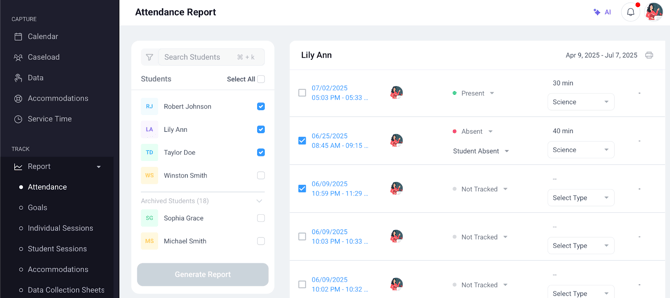
- Or, navigate to the Attendance Report section, generate a report for selected students, and edit their service time details directly from there.
Both methods allow you to efficiently update service time for multiple events in one place.