.png?width=160&height=160&name=Logo%20with%20Text%20(4).png)
AbleSpace offers a seamless and flexible student onboarding experience. With AbleSpace, users have the option to populate their caseload in three different ways. They can:
- Add a student manually
- Bulk add students manually
- Auto-import students and their goals by uploading IEP documents
Let’s cover each of these options in detail.
1. Adding a Student Manually
If you wish to add individual students one at a time, this method will be ideal. To do this:
- Go to the Caseload tab.
- Click on the Add Student button.
- A dialog box with three options will appear.
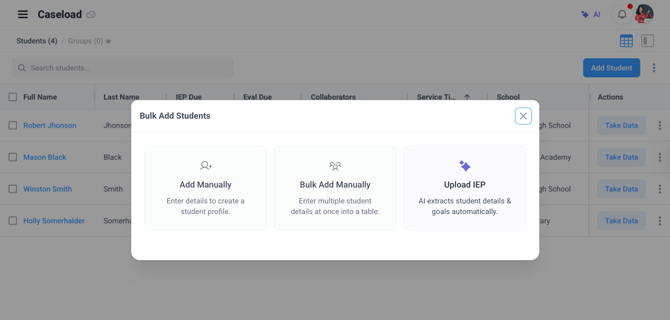
- Choose the ‘Add Manually’ option.
- Fill in the student details, e.g. first name, last name, school name, grade, Date of birth, teacher, and so on. You can also choose an avatar colour or upload a custom picture.
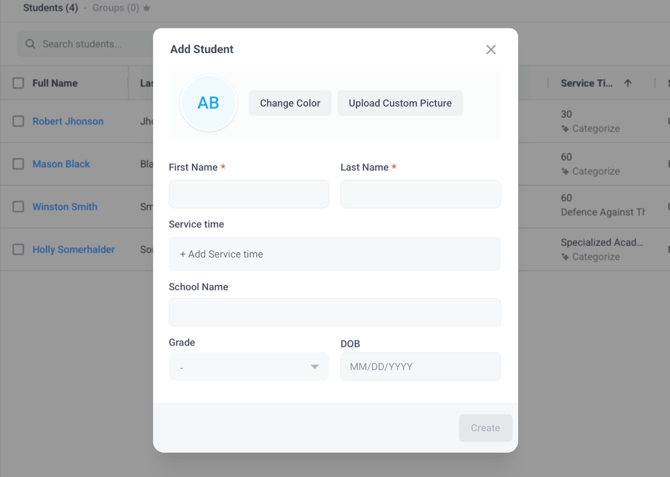
- Next, all you have to do is click on ‘create’. This will successfully add the student to your caseload.
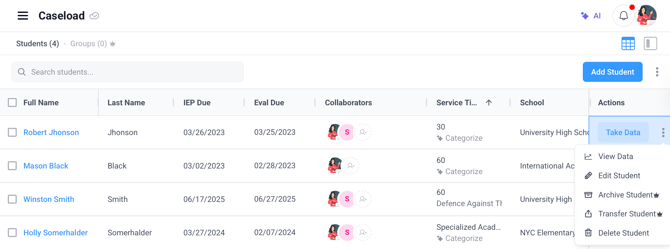
📌 Pro tip: Want to modify a student’s details? Click the three-dot menu next to the 'take data' button and select 'edit student' from the options.
B. Bulk Adding Students Manually
If you have a spreadsheet or IEP management system with a large list of students and you wish to quickly import all of them to your caseload manually, the bulk add option will be suitable. Here’s how you can use it.
- Click on ‘Bulk Add Manually’ in the Add Student dialog box.
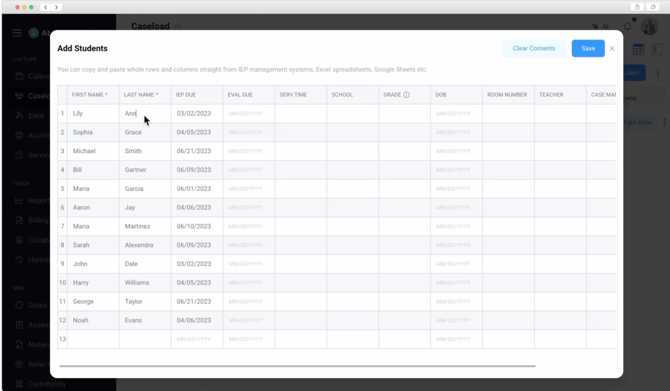
- A spreadsheet-style interface will appear on the screen.
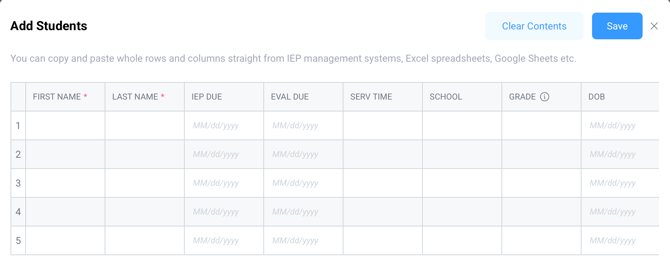
- You can then copy and paste entire rows or columns directly from your spreadsheet. Copying and pasting multiple rows or columns simultaneously is also possible.
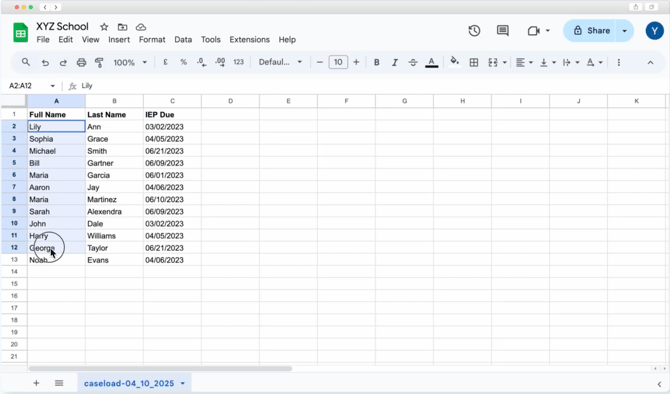
- Click ‘Save’ to add all the entered students to your caseload.
📒 Note: You’ll only need to fill in the first name and last name fields. All other fields are optional.
C. Adding Students and Goals by Uploading an IEP Document
In this method, you can leverage AbleSpace’s AI to extract student information directly from IEP documents. Here’s how you can do it.
- First, select the "Upload IEP" option from the Add Student dialog box.
- An upload area will appear.
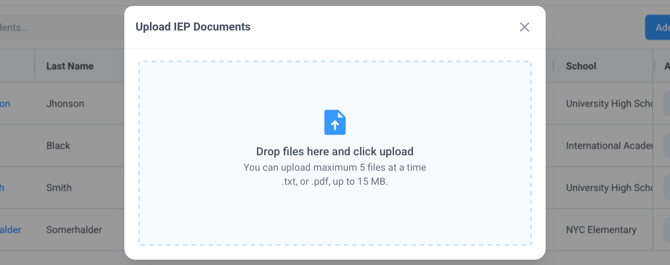
- You can either select multiple files at once or drag and drop them into the upload area.
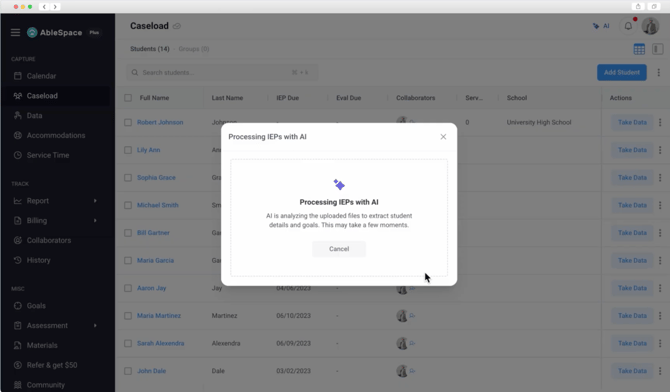
- Next, click Upload to begin processing. During this time, the AI analyzes the documents and extracts student names, goals and accommodations.
- If a student isn’t already in your caseload, a sidebar appears showing all the students identified in the upload.
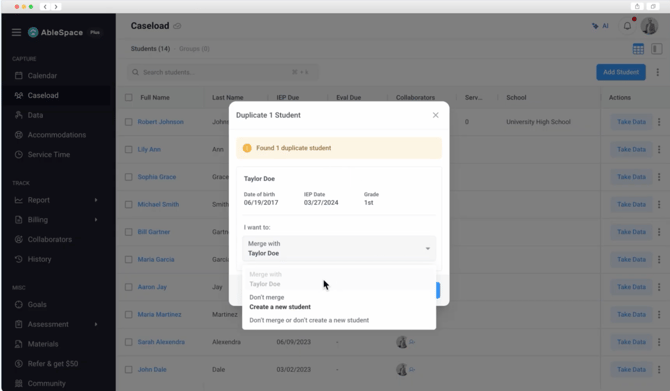
- Conversely, if a student already exists in the caseload, a Duplicate Student pop-up will appear. To handle the duplicate, you can choose to:
- Merge with the existing student.
- Avoid merging with an existing student and create a new one.
- Neither merge with an existing student nor create a new student.
- Now, you can review and select the goals and accommodations that you wish to add. This can be done by opening the goals and accommodations drop-down menus.
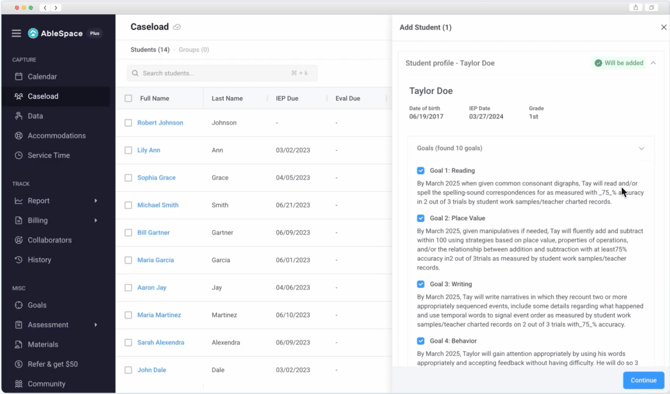
- Click Continue.
- You’ll be prompted to confirm your choices.
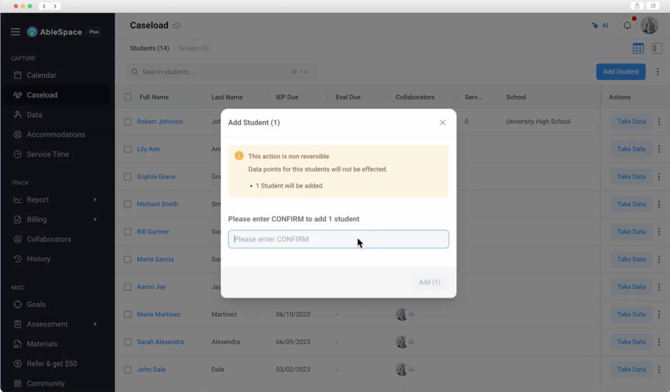
Once your selection is confirmed, the selected students and their details will be added to your caseload.
If you need assistance or have any further questions, do reach out to our support team at support@ablespace.io.