.png?width=160&height=160&name=Logo%20with%20Text%20(4).png)
This guide will walk you through the process of creating a custom data type within AbleSpace, allowing you to effectively track complex goal data, including text, numbers, multiple-choice answers, checkboxes, and calculated fields, all in one place.
1. Getting Started with Custom Data Types
To begin creating a custom data type:
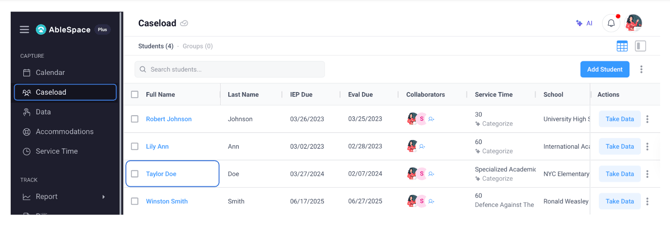
- Select a student from the caseload.
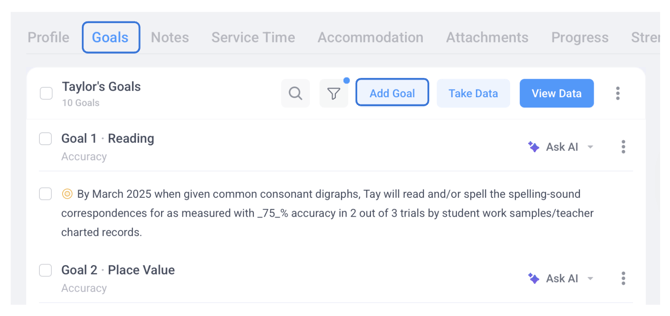
- Go to the “Goals Tab” and click on the "Add Goal" button.
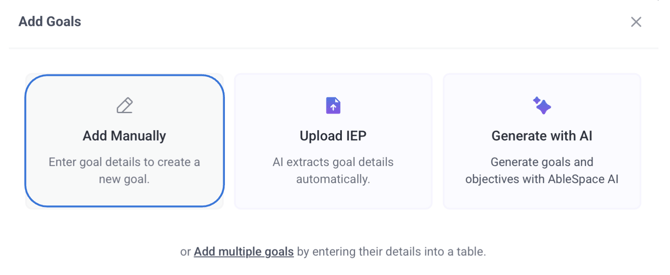
- When the "Add Goal" dialogue box opens, click the "Add Manually" button.
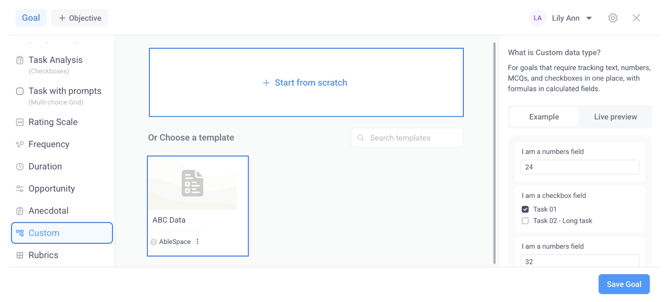
- From the list of available data types, select "Custom".
- You may notice a pre-built template labeled ‘ABC Data,’ which you’re welcome to use. However, to understand the full process of creating your own, click ‘Start from Scratch’.
2. Defining Your Custom Goal
Once you've chosen to start from scratch, you will need to:
- Add your goal's title.
- Provide a brief description to explain its purpose.
3. Building Your Custom Tracking Form (Fields)
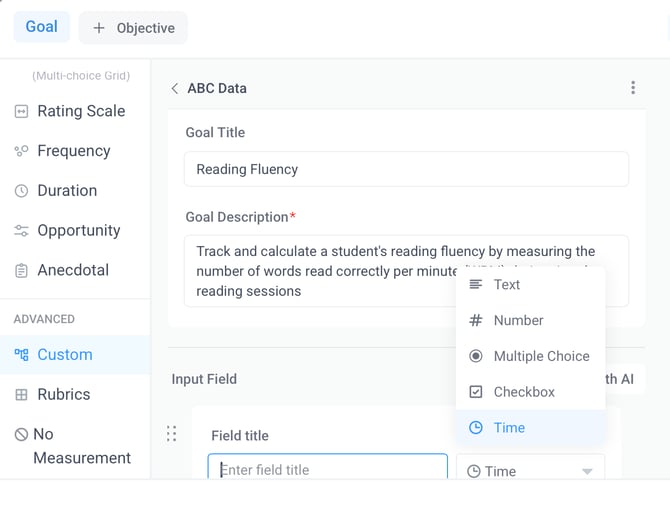
To start building your form, click on the field title and fill it in to define each data point you wish to track. You can add four primary types of fields:
- Text field: For alphanumeric input.
- Number field: For numeric data.
- MCQ field (Multiple Choice Question field): For multiple-choice selections.
- Checkbox field: For simple true or false, or yes or no values.
- Time field: Allows you to input a time (e.g., 5:30 AM).
📒 Note: Optional Features for Fields:
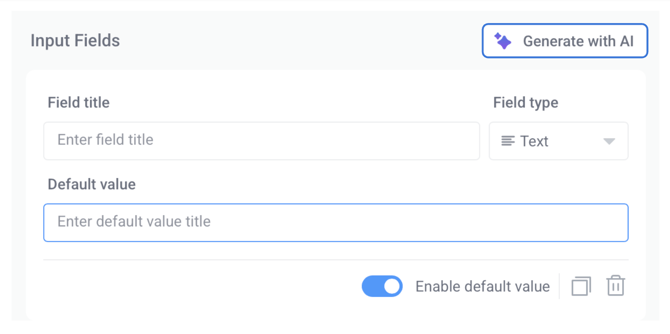
- Click Generate with AI to auto-generate fields based on the goal title and description.
- You can also enable a Default Value.
- To quickly add the same field again, click the "Duplicate icon".
- To remove an unwanted field, click "Delete".
- Click “Add Field” to add more fields.
4. Utilising Calculated Fields
Calculated fields are powerful tools that allow you to define your own formulas.
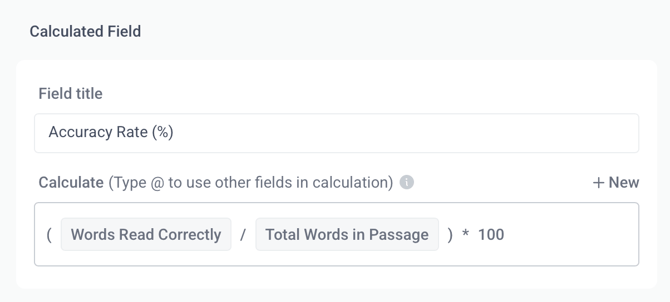
- These fields primarily use number fields for their calculations.
- Fill in the field title for your calculated field.
- Formulas: You can create formulas like "Field A plus Field B" to automatically calculate totals.
- Basic Operations: Use standard operation signs such as plus (+), minus (-), times (*), divide (/), percent (%), and correct to build your formula logic. You will use your own specific formulas for these fields.
5. Organising and Previewing Your Layout
- Rearrange Fields: You can easily drag and drop fields to place them in your desired order.
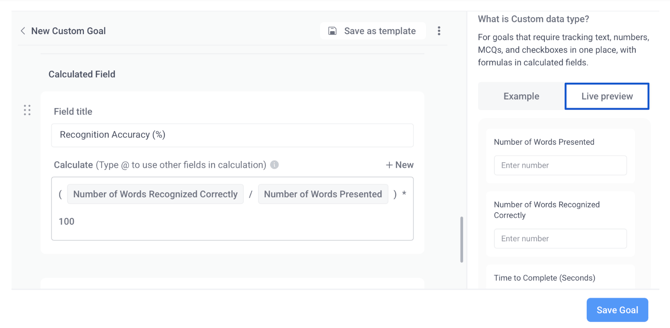
- Live Preview: To see how your custom data type will look when you are entering data, click "Live preview" from the right-hand sidebar. This allows for instant layout checking.
6. Saving Your Custom Data Type
Once you are satisfied with your custom data type:
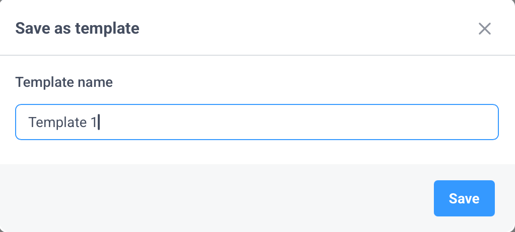
- Save as a Template: If you anticipate reusing this custom setup in the future, click "Save as template", give your template a name, and then click "save".
- Save Goal: When you are completely done, click the "Save goal" button to finalise it and add it to your student's plan.
The custom data type feature in AbleSpace provides a powerful and flexible format for tracking complex data in a simplified manner.
Need Further Assistance?
Should you have any additional questions, please do not hesitate to reach out to the AbleSpace support team at support@abablespace.io.