.png?width=160&height=160&name=Logo%20with%20Text%20(4).png)
This step-by-step guide will help you navigate the Calendar and Calendar Preferences in AbleSpace. You'll learn how to create events, apply filters, use powerful calendar features, and customize your calendar settings for a more personalized experience.
A. Creating a Calendar Event
To create a new event in your calendar:
- Open your Calendar.
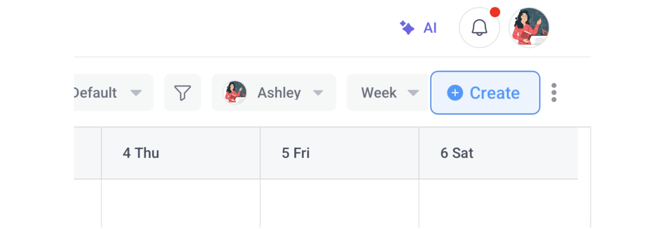
- Click the Create button, or simply click anywhere within the calendar.
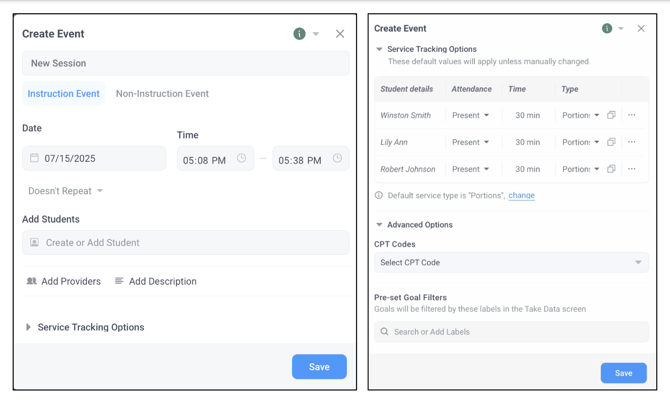
- In the modal window that appears, fill in the following fields:
- Event Name
- Event Type: Select either Instruction or Non-Instruction (Non-instructional events, like lunch breaks, do not support data tracking.)
- Date and Time
- Students: Add the students involved in the event
- Providers: Add service providers or team members
- Description: Add any relevant notes or context
- If your admin has enabled them, you may also see additional fields such as Drive Time and Mileage.
- Next, click the Service Tracking Options dropdown to preset the service time, service type, and attendance. You can also set the default service type.
- Open the Advanced Options dropdown menu to select CPT codes and filter goals by preset labels.
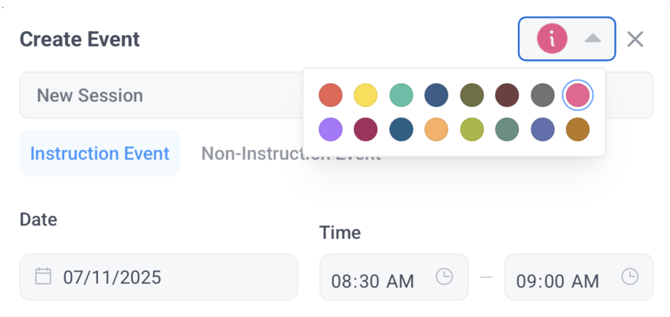
- You may also assign a color to your event.
📒 Note: Event coloring is visible only when calendar filters are in their default state.
-
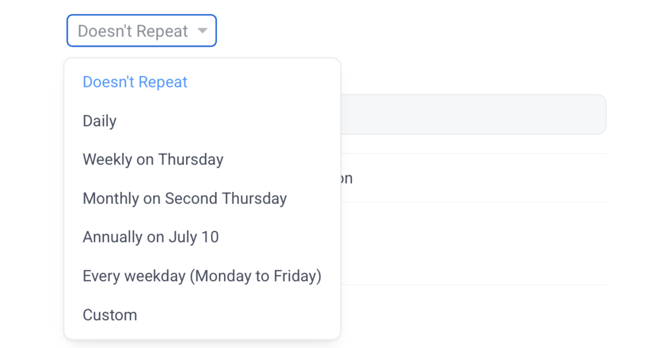
If you want your event to repeat:
- Click the "Doesn't repeat" dropdown and choose a recurring frequency (e.g., daily, weekly).
-
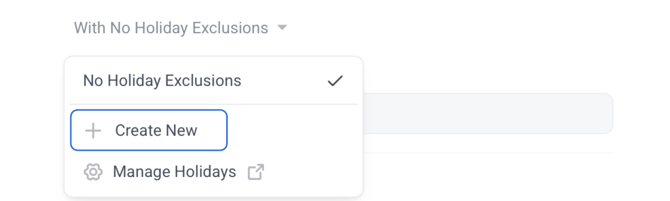
- Once a frequency is selected, the Holiday Exclusion option will appear. Use this feature to add holidays and prevent events from being scheduled on those specific dates.
Finally, click Save to create your event.
B. Viewing & Managing Events
Click on any event in the calendar to open a sidebar displaying the full event details.
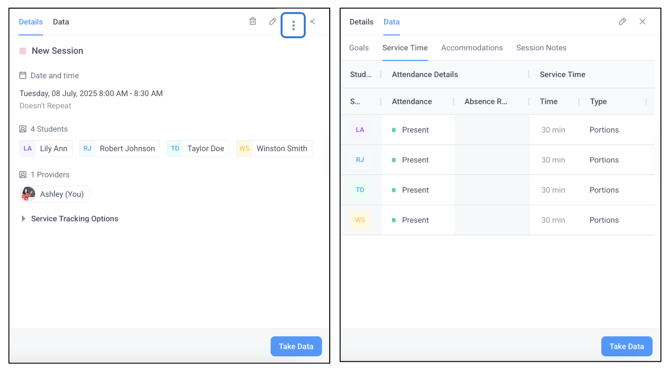
- Use the three-dot menu to duplicate the event or mark all students absent.
- Navigate to the Data section of the sidebar to log data such as Service Time, Accommodations, and Session Notes.
📒 Note: If a student has an IEP due today, it will appear at the top of the calendar for visibility.
C. Calendar Filters & Views
AbleSpace offers flexible viewing and filtering options:
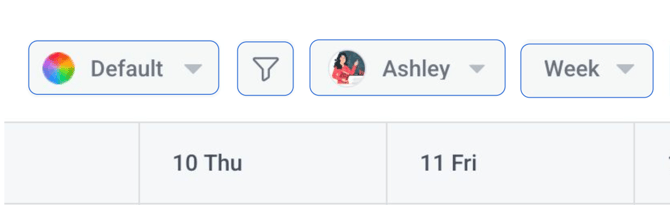
- Click the Event’s Color dropdown to color-code events by school, grade, collaborator, organizer, student, teacher, or date of birth.
- Click the filter icon to open a popup and filter events by specific titles.
- Use the provider dropdown menu to switch views and see another team member’s calendar for better collaboration.
- Click the Calendar View Dropdown to choose from Day, Week, Month, or List view.
D. Customizing and Managing Calendar Events
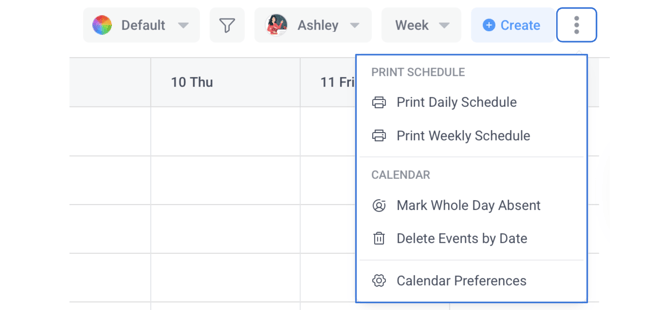
To customize your calendar, click the three-dot menu in the top-right corner of the calendar view. A popup will appear with several options.
- You can print your daily or weekly schedules.
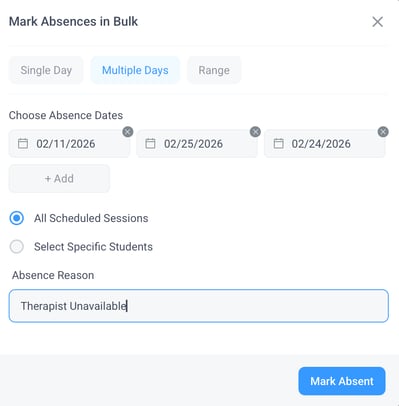
- You can also mark all sessions on a selected day as absent. (When this option is clicked, it opens a modal that allows you to choose a day, multiple spread-out days, or a range of days to mark as absent. You can choose how to handle sessions in the selected range and mention the absence reason.)
- To delete events, click on the Delete Events by Date option. In the dialog box that appears:
- Choose whether you want to delete events for a single day, multiple days, or a custom date range.
- Select whether to delete recurring, non-recurring, or both types of events.
- Choose whether to delete events with data or events without data.
📒 Note: You cannot delete events where you are not the owner. These events will only be removed from your calendar view.
- Click on Calendar Preferences to further personalize your calendar experience.
E. Calendar Preferences
Under Calendar Preferences, you can:
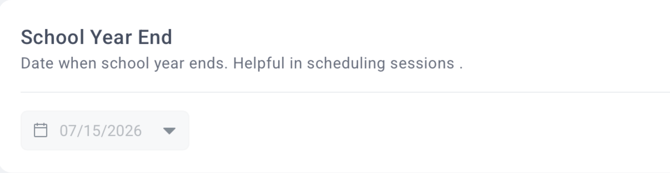
- Set the date when the school year ends.
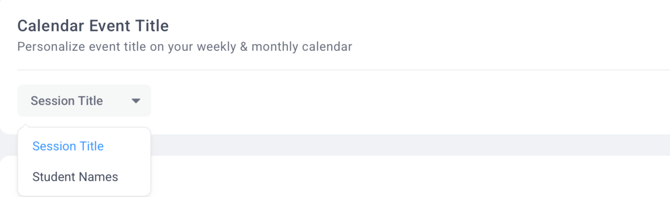
- Choose whether to show session titles or student names in the weekly and monthly calendar views.
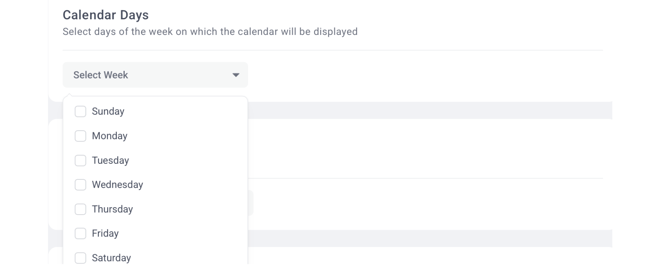
- Select the days of the week on which your calendar will be displayed.
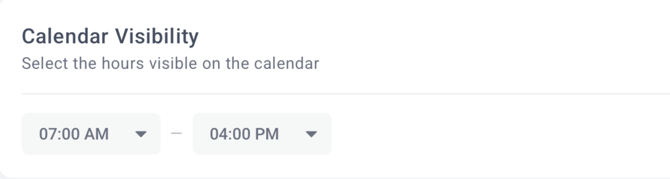
- Control the hours visible in your calendar view.
- Add holidays to skip scheduling on those dates.
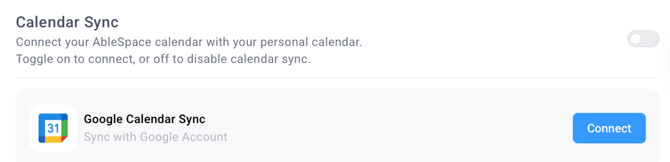
- Sync your AbleSpace Calendar with your Google Calendar.
- Assign colors to events based on custom variables.
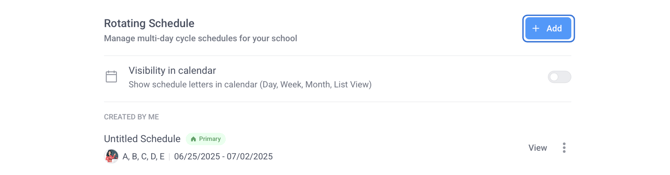
📒 Note: You can also create and manage multi-day rotating schedules under Calendar Preferences. To do this:
-
- Click the Add button under the Rotating Schedule section.
- In the dialog box that appears, enter details such as the schedule title, school days, start and end dates, schedule alphabets, and holidays.
- Click save schedule.
- Enable calendar visibility to activate the rotating schedule.
Need Help?
If you have questions or need assistance, please contact our support team at: support@ablespace.io