.png?width=160&height=160&name=Logo%20with%20Text%20(4).png)
In AbleSpace, there are multiple ways to add a goal to a student’s profile. This guide walks you through the most straightforward method first and then introduces alternative methods you can use.
Adding a Goal via the Caseload Tab
To add a goal using the Caseload tab:
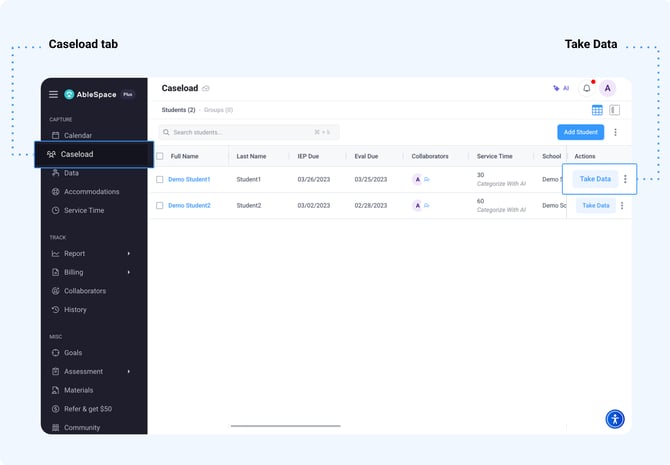
- Go to the Caseload tab.
- Select the student you want to add the goal for.
- Click on Take Data
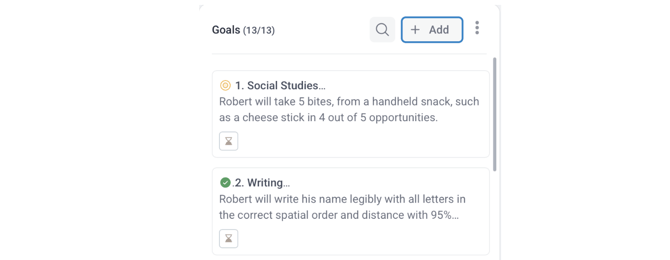
- On the data-taking screen that appears, click Add Goal to open the goal creation pop-up.
Understanding the Goal Entry Popup
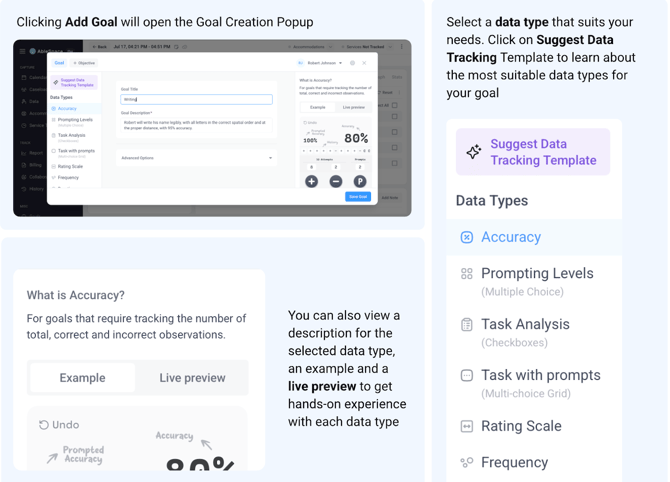
Once the goal creation pop-up opens, you'll see three main sections:
- Left Panel: Select one of the 11 different data types. These determine how data will be collected for the goal.
- Right Panel: View a description for the selected data type, an example and a live preview to get hands-on experience with each data type.
- Center Panel: In the center, fill in the following fields:
- Goal Type- e.g., Reading, Math, Communication
- Goal Text- Provide a clear, complete description of the goal
- Additional Details- Enter any extra information required based on the selected data type
Exploring Available Data Types
AbleSpace currently supports 11 data types, each suited to a different objective:
-
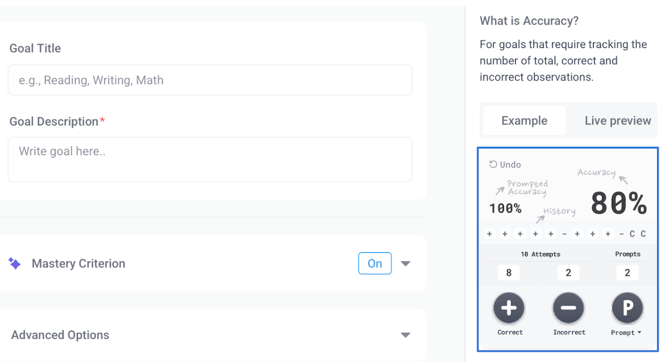
Accuracy
-
-
+ for correct attempts
-
− for incorrect attempts
-
P for prompted responses (prompts, cues, verbal, gestural, etc.)
-
Accuracy % is automatically calculated as you input data.
-
Prompting Levels
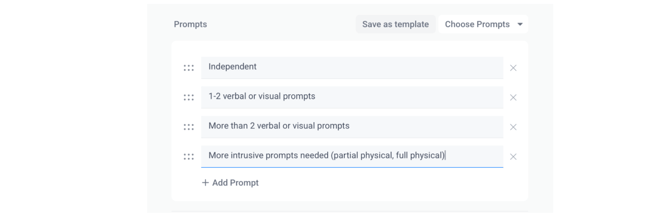
Track how much assistance the student needs. Set up custom prompt levels and select one during data collection.
📒 Note: This data type can also be used for goals that require tracking via multiple choice questions.
-
Task Analysis
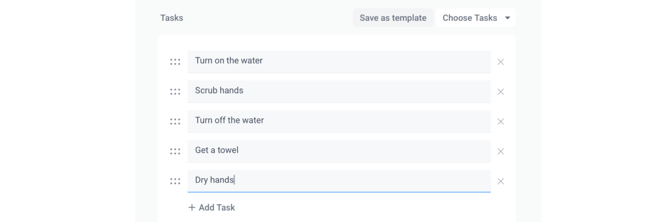
Track step-by-step task completion. Add individual tasks in the center panel. During data collection, mark those that were completed.
Note: This data type can also be used for goals that require tracking where multiple options can be correct.
-
Tasks with Prompts
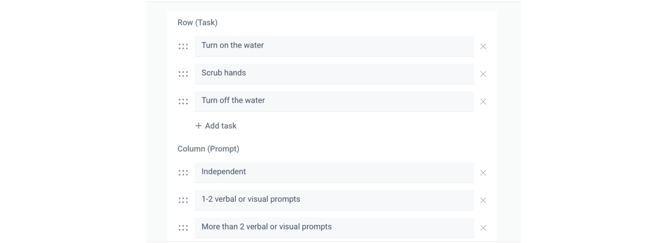
Track individual tasks with the level of prompting used for each. Add the individual tasks in the row section and the prompting levels in the column section.
Note: This data type can be used for any goal that requires tracking with a checkbox.
-
Rating Scale
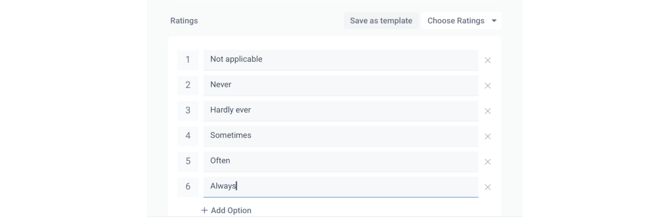
Measure progress using a scale. Add or delete options as you need. You can also assign customized labels and values (e.g., 1–5 or "Emerging" to "Mastered").
-
Frequency
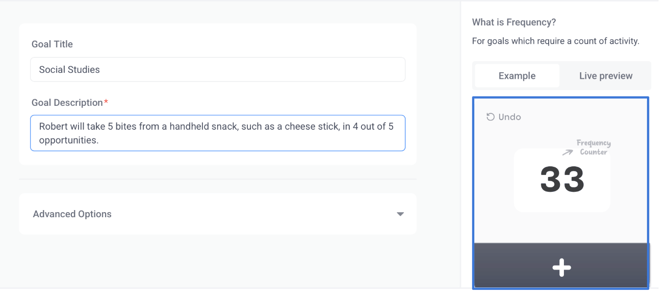
Track how often an activity occurs. Simply click the + button each time the activity is observed.
-
Duration
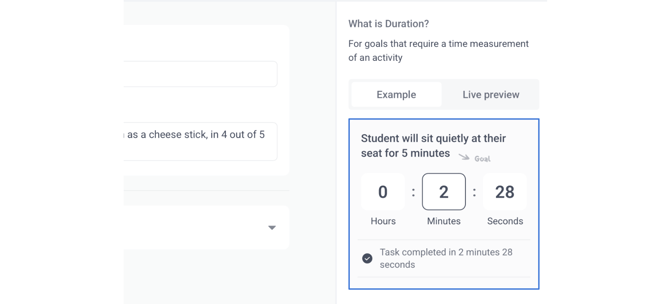
Track how long a behavior or activity lasts. This data type is suitable for goals that require a time measurement of an activity.
-
Opportunity
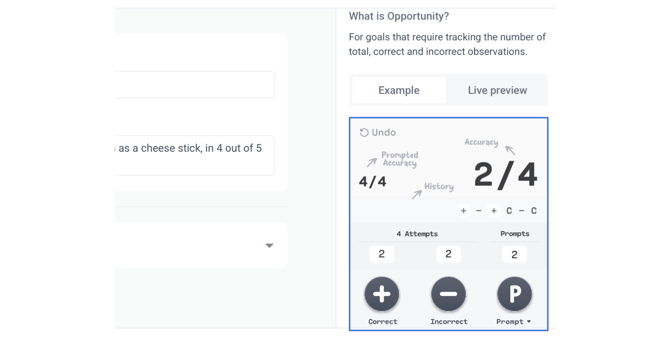
Track the total number of observations, including correct and incorrect responses. While the Accuracy data type displays correct responses as a percentage, the Opportunity data type presents them as a fraction.
-
Anecdotal
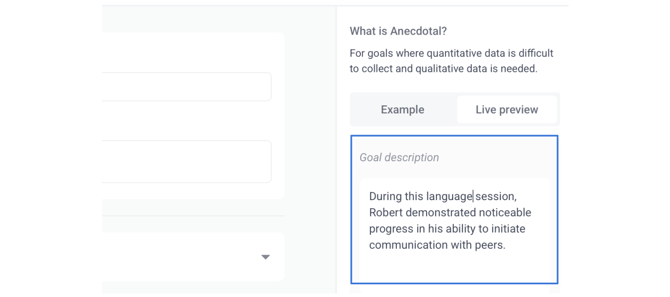
Enter qualitative observations and notes. This is ideal for goals that don't require numerical tracking.
-
Custom
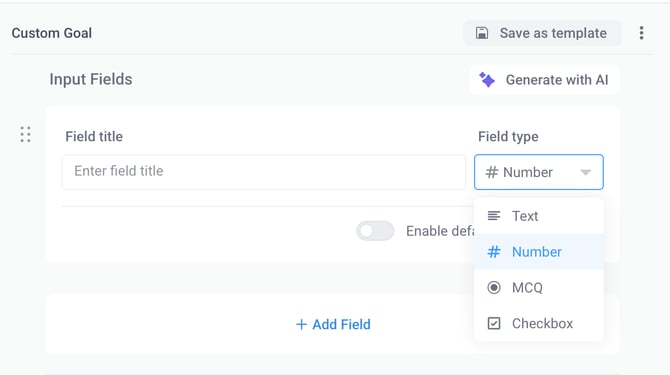
Build a data tracking format when none of the default types apply. You can add 5 types of fields, i.e. text, numbers, MCQ, checkbox or time. You can also add prefilled values and calculated fields.
-
Rubrics
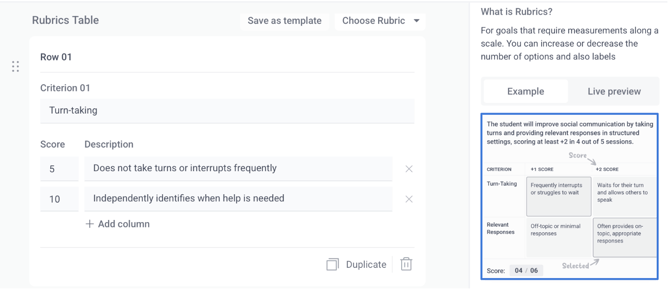
This data type is suitable for tracking progress across a defined scale, like rating student skills or behaviour. Simply enter the criteria you wish to rate and set up the columns that define the scoring scale.
✍️ Tip: You can also add objectives under the main goal. Once all goal and objective details are entered, click Save Goal to add the goal to the student’s profile.
Alternative Ways to Add a Goal
Besides the Take Data screen, you can also add goals from:
Option 1: Goals Tab
-
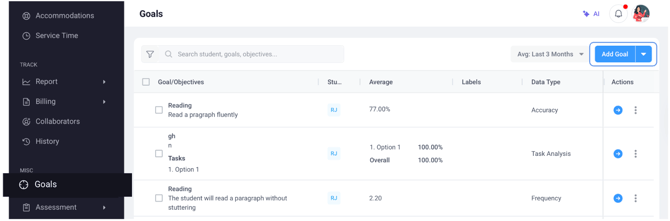
Go to the Goals tab.
-
Click Add Goal in the top right corner.
-
Select the student from the goal creation popup that appears.
-
Proceed to enter the goal details.
Option 2: Caseload > Student > Goals Tab
-
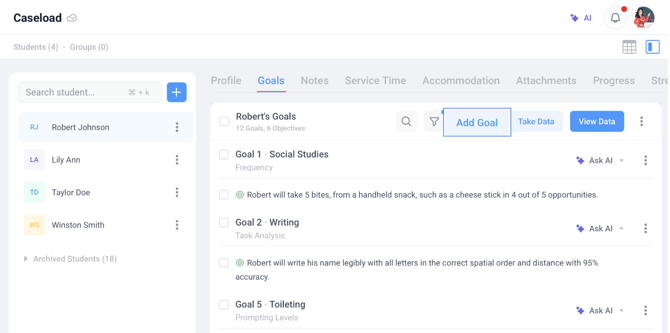
Go to the Caseload tab and click on the card view/tile view icon.
-
Click on the student profile.
-
Open the Goals tab.
-
Click Add Goal and proceed.
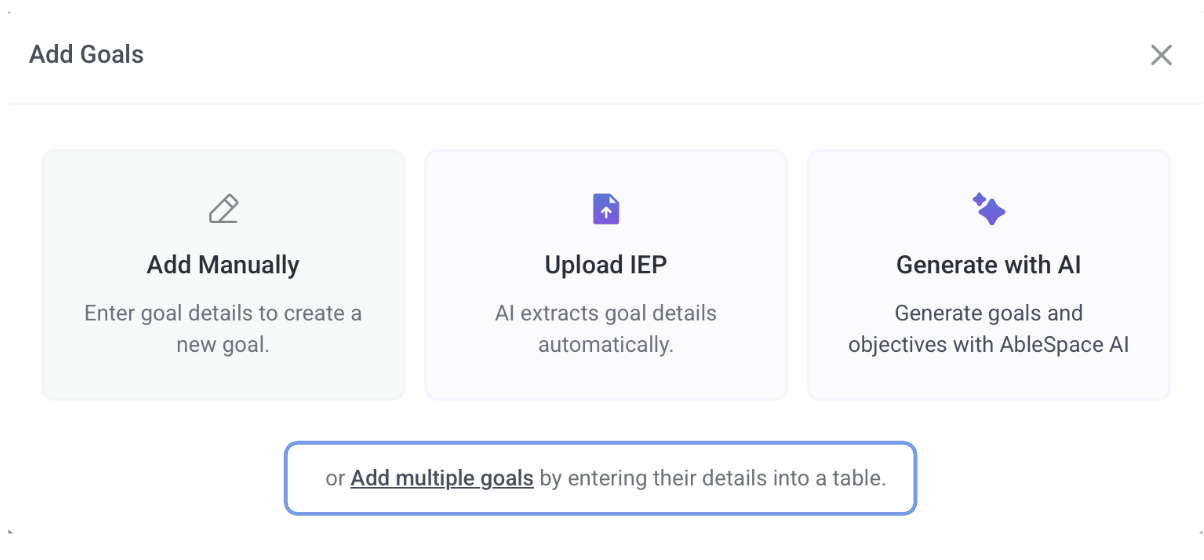
Note: If you have a spreadsheet or IEP management system containing a large list of students and associated goals, the Add Multiple Goals option enables you to manually import them into your caseload efficiently.
Need Help? If you have any questions, please reach out to our support team at support@ablespace.io